Wednesday, 6 June 2012

Interfaces

Interfaces are really important in games, as not only can they can effect the whole tone of the game, it would be impossible to play the game without them. The best interfaces are usually simple and very easy to understand. Usually with flash games the screen is limited as it is, and having to have lines of text for buttons would clog up the screen, therefore symbols are very important. 
 This dress up game is a good example of a good interface, the buttons on the side are easy to understand and aren't to big and the colours and such fir the theme.
 This game is sightly worse, words are used more which is less aesthetically pleasing, although it fits in with the feel of the game. They are also a bit too complicated and spread out rather messily.
This interface is good but the use of grey looks slightly out of place next to the bright characters in the game.

All in all it's important to keep in mind your target audience/feel of the game (is it a bright children's game, or more mature) if it's understandable and placement.

After looking into interfaces we did a series of tasks where we were given a basic game and we designed the interface for it.


 The first game we did was a maze which I made into a dark-ish themed game, set in a factory. Therefore I used brushed steel textures, metallic colours and a typewriter font. I liked this design but it was a bit drab.
Next we had to made one using web 2 graphics (shiny reflective smooth surfaces, very clean looking) my design was simple but stylish and I liked it, even if it was a bit boring.

And finally we did one for a childish golf game, I made the background myself and used the apple graphic used as a golf ball for the scoring system, I even edited the apple to look like it had been eaten to represent a miss. I liked this interface, especially with the font I had chosen but I just wished I could have worked on it for a bit longer.

Through this experimentation I learnt a lot, especially form the feedback I got. I realise now colours and placement are a lot more important than I thought and that I prefer the look of web 2 graphics as they look more professional.

Thursday, 17 May 2012

Game Design Document

A quick History of Sonic


The first sonic game Sonic the Hedgehog came out in 1991 on the Sega Mega Drive, it was immensely successful and helped Sega become a leading video game company during the early to mid 1990's. Due to it's popularity a sequel was soon made in 1992 followed up by a steady stream of games up to the present day.

All games include a few recurring themes, such as collectable rings. When holding at least one ring you can survive damage from an enemy or dangerous enemy, instead of a health bar or something of the sort going down though, you lose rings which are scattered around you. You can re-collect the rings but they soon disappear. If you have 0 rings and take damage, it is a game over. Certain things like falling off a cliff, being crushed, drowning ect. cannot be avoided, even if you have rings you will still die.

Other recurring things in the games involve chaos emeralds (usually collecting these is the aim of the game) special stages and special transformations.

Sonic Heroes

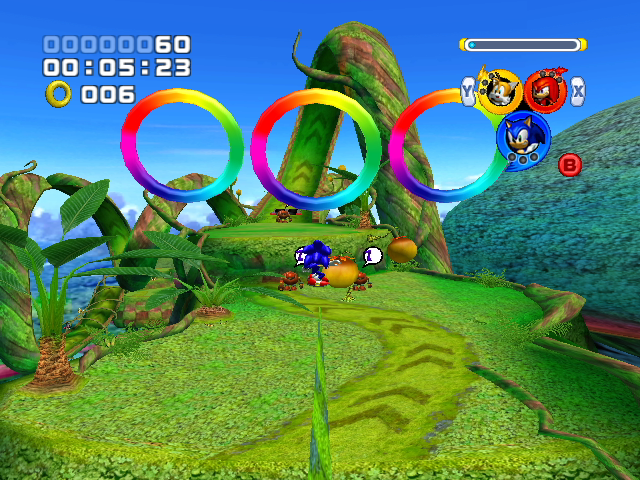
Sonic heroes came out in 2004 for the PlayStation2, xbox, GameCube and Microsoft Windows. Unlike most sonic games instead of just playing as Sonic you play in a team of three and you can freely switch between them in game play. In each team there is a flying caracter, a strong character and a fast character. Each character can do a varity of things the others can't, and in gameplay you have to switch between the characters to complete certain parts (for example you may have to play as the flying character to reach a high ledge, then switch to the strong character to break down a wall ect.) The logo of the game is based of the interface on the screen to show what character you are playing as. Is is made up of three circles, one representing each of the 3 team members (blue = speed character, red = strong character, yellow = flying character).

The interface is quite simple for this game. In the top left corner you have your score, time and ring counter, and in the top right you have the game logo doubling up as an indication of what character you are. The designs are simple and easy to understand, which is good since the intended audience is around 3-13. Since the intended audience is young and the games are rather childish the use of bright primary colours is a good choice. I like this design because it is simple and easy to use, but it's a bit boring and clunky looking. I intend to make a smoother more modern looking interface. As well as just looking at Sonic Heroes, I looked at interfaces from other Sonic games as well. 


The designs are even simpler, although the last two work better than the Heroes interface as the white numbers have some sort of frame, which looks better than just slapping the numbers straight on the screen. Also the numbers being framed helps make the numbers stand out against the background.
 A similar series to Sonic, Crash Bandicoot has a similarly simple interface, but it is much less effective. While the symbols are easily understandable the text is in a horrible childish font which just looks unprofessional, and gradients just make it worse. Not only that but it also takes up nearly 1/4 of the screen, this just shows how important placement is, and sometimes it’s better to just stick with the basics.
Picking up on my favourite aspects from the various interfaces I made some thumbnail sketches.


After finishing the sketches I did some beta testing. People liked the way I had made the three circles into segments of one circle, especially on the first two thumbnails. As for the score on the left no-one really liked the second one, there was too much white space in-between the time and score and all in all it just looked neater in a box. I decided on the first score-box because it was more elegant than the block-like 3rd option.


These are my finished interfaces. I really like the way the score keeper came out, I think it looks professional and easy to read. I like the character select wheel less, I think the black is a bit too dark and the images of the characters inside the different sections look a bit out of place, if I could do this again I would spend more time on that aspect, but all in all I am happy with what I produced.


Thursday, 3 May 2012

Unity and UDK

Today we had a quick tutorial on the program called Unity. Unity can be used to make intractable 3D landscapes for games and such and is a very popular program.

First we made a new project and we imported the Character Controller, Skyboxes, Terrain Assets, Water (Basic) and Water (Pro Only) unity packages. Doing this is like selecting a range of tools before setting out on a project, you can always go into Assets > Import Package to import a new package further into the project if you realise you need it.


Next we made a new terrain as a starting point to build from.


We then went into Edit > Render Settings to make a sky. 


And in the selection box we selected a simple sunny sky.


Using the packages we selected earlier we dragged and dropped a 3rd person controller onto the terrain. 

We then went into assets and added a point light.
Selecting the terrain again we started using the brushes to make mountains ect. The first brush will pull the terrain up, while the second will pull it up to a certain height, also holding shift will erase. There a various brushes to give a more natural feel to the land as well.
We then added water so our raised ground became an island.
Then using the variety of foliage brushes we were able to add grass, and add trees.
Finally we added a texture to the ground.

This program was fun to work in and is great for making outside levels, it feels really organic with the brushes as well, as if you are moulding clay, instead of how precise and complicated programs like 3DS max.

Next we had a tutorial for the program Unreal Development Kit. Unreal is a game engine developed by Epic games and is very popular as it is extremely easy to use. For our experimentation we used the first two tutorials in this youtube playlist http://www.youtube.com/playlist?list=PLA2DE3D64B848BC63&feature=plcp


When you first open it up you have the choice to pick a time of day for the sky or a blank sky, and when chosen you are given a flat plane to start with. You move the camera with the wasd keys, and you can use the scroll to zoom in and out. There is also the framework of a box on the plane in red, which is your building frame, this can be resized and such until you are happy with it, and then by clicking the CSC add button the frame is filled in. After that you can move the frame away from what you just created and start the process again. The shape of the frame can be changed by selecting a different brush, for example the cone or stairs. When you do select a new brush a box will come up where you can manually input dimensions and such if fiddling around in the veiwports with the red framework isn't your thing (you can also make a box hollow for making a room), you can then close this box, (the setting will be remembered) and carry on like before or click build. Holding down L while clicking anywhere in the veiwport makes a simple light, which can be moved about just like the red framework, with the X, Y and Z arrows. To play in the level you just right click in the veiwport and select 'play from here' and you will be dropped in where you clicked. You can also copy things by holding alt and dragging, much like 3DS max.


You can add things like static meshes (pre-built things) and textures using the content browser, you can simply drag and drop them into the veiwport, be it a texture or a static mesh.


Finally by going into World Properties you can give your character a gun.

Thursday, 23 February 2012

Temperature interface

For our first project in this module we had to group up and make an interface for showing information picked up by an ecoid. Our group consisted of Connor, Adam, Aj and me, and we decided as a team that we wanted to present the temperature information picked up by the ecoid. After a quick discussion we decided we wanted to present the information in a creative and interesting way, so after a few minutes of brainstorming we decided to have the seasons represent the temperature; hot temperatures showing a summer scene, cold temperature showing a winter scene and so on.

We then decided to have an image of a city as the main image, and have the seasons change in the city but because we had limited time we cut it down to a singular tree. Adam and Connor did the research and me and Aj made the graphics, me doing the tree and her doing the sky.

Research: http://csinterfaces.blogspot.com/2012/02/research-for-castle-idea.html
http://csinterfaces.blogspot.com/2012/02/re-think-to-idea.html
http://csinterfaces.blogspot.com/2012/02/research-for-revised-idea.html


All in all I liked our idea, although it was a bit abstract for some people as it doesn't relay the exact temperature. If I could do it again I would add more aspects instead of just temperature and I would had made a little box to show the exact temperature as I feel just the tree on it's own is a bit too abstract. 

Monday, 8 March 2010

Interfaces and GUI


At the beginning of this module we divided into groups and were given the task of making a mind map full of interfaces. Interfaces are things that can be interacted with, for example a keyboard or a pencil. While doing this task we soon realised basically everything minus time is an interface. For example if you hit a glass wall then it will break, if you pet a cat it will purr ect.

We then looked into Graphic User Interfaces, or GUI's. GUI's are a type of user interface that allows users to interact with electronic devices, the main examples we looked at being flash games. As the name implies these interfaces are made up of graphics, and these graphics play an important part in the interface as it is important to be able to interpret the meaning of the symbol at a glance.